by jollondon | Dec 5, 2025 | Digital Tools
Why Buying Old Google Play Console
Buying Old Google Play Console accounts has increased rapidly over the past few years. Many developers, marketers, and even shady operators are trying to buy these “aged” accounts instead of creating new ones.
But why?
In this guide, Jollondon explains the real reasons behind this trend, the risks, and what Google says about it.
1. To Avoid New Strict Verification & Review Rules
Since 2023, Google has added multiple layers of restrictions for new developer accounts, including:
- Strict identity verification
- Longer review and approval time
- Additional security and platform checks
- Delayed first-time publishing
- Because of these tougher rules, people look for older accounts that don’t face the same level of scrutiny.
- This helps them publish apps instantly without waiting.
2. “High Trust Factor” in Google’s Review System
Older Google Play Console accounts often have:
- Previously published apps
- A clean policy history
- Good performance metrics
- This gives them a higher trust score in Google’s automated review system.
Because of this, apps published from old accounts often:
- Get approved faster
- Face fewer rejections
- Avoid strict manual review
- This is one of the biggest reasons behind the demand.
3. To Evade Bans or Bypass Google Policies
Even though people buy them, it is NOT safe.
Here’s why:
1. It Violates Google Play Policies
Google strictly prohibits selling, transferring, or buying accounts.
If detected:
- The account gets permanently banned
- All apps are removed
- Earnings are lost
- Your devices or IP may get flagged
2. High Probability of Scams
Most accounts are sold on:
- Telegram groups
- Black-hat markets
- Shady online forums
- Buyers often get scammed, or the seller takes the account back later.
3. Your Company or Brand Reputation Can Be Damaged
If a client discovers you used a purchased account, it harms your professional image.
For long-term business, this is never recommended.
At Jollondon.com, we strongly recommend using your own verified Google Play Console account for app publishing.
This ensures:
- Long-term safety
- Brand credibility
- Zero legal risk
- Better trust from Google
- Consistent app ranking and monetization
- If you need help with app development, SEO, or publishing guidance, Jollondon can assist professionally.
Final Thoughts
The trend of buying old Google Play Console accounts continues in 2025 — but it comes with major risks, policy violations, and long-term consequences.
Always choose the safe, professional route.
Another major reason is ban evasion.
If a developer’s original account gets suspended due to:
- Policy violations
- Malware issues
- Misleading apps
- Copyright issues
- They cannot open a new account with the same identity. So some people buy old accounts to continue publishing — even if their apps were previously banned. Many shady apps, ad-heavy apps, and low-quality apps use such accounts.
4. For Fast Monetization and Mass App Publishing
There are many developers and agencies who publish:
- Small utility apps
- Template-based apps
- Games with ads
- Large numbers of cloned apps
- Old accounts allow them to publish apps quickly and start making money from ads immediately.
This “fast monetization” model is a key reason behind the trend.
5. To Avoid the Effort of Setting Up a New Account
A new Google Play Console account requires:
- Identity verification
- Payment setup
- Tax & legal details
- Building trust slowly
- An old account is a shortcut to skip these processes.
Why Buying Old Google Play Console Accounts Is Extremely Risky
Even though people buy them, it is NOT safe.
Here’s why:
1. It Violates Google Play Policies
Google strictly prohibits selling, transferring, or buying accounts.
If detected:
- The account gets permanently banned
- All apps are removed
- Earnings are lost
- Your devices or IP may get flagged
2. High Probability of Scams
Most accounts are sold on:
- Telegram groups
- Black-hat markets
- Shady online forums
- Buyers often get scammed, or the seller takes the account back later.
3. Your Company or Brand Reputation Can Be Damaged
If a client discovers you used a purchased account, it harms your professional image.
For long-term business, this is never recommended.
At Jollondon.com, we strongly recommend using your own verified Google Play Console account for app publishing.
This ensures:
- Long-term safety
- Brand credibility
- Zero legal risk
- Better trust from Google
- Consistent app ranking and monetization
- If you need help with app development, SEO, or publishing guidance, Jollondon can assist professionally.
Final Thoughts
The trend of buying old Google Play Console accounts continues in 2025 — but it comes with major risks, policy violations, and long-term consequences.
Always choose the safe, professional route.
[/et_pb_text][/et_pb_column][/et_pb_row][/et_pb_section]

by jollondon | Dec 1, 2025 | Digital Tools
Creating a professional CV is one of the most important steps when applying for a job — but many people still struggle with formatting, layout, grammar, and design. A Free CV Maker solves this problem by allowing anyone to build a job-ready CV online in just a few minutes.
Whether you are a student, a fresh graduate, or an experienced professional, a free CV maker helps you create a clean, modern, HR-approved CV without paying for expensive templates or wasting time in MS Word.
What Is a Free CV Maker?
A Free CV Maker is an online tool that allows you to build and download a professional CV instantly. You simply enter your details, select a template, and the tool automatically formats everything perfectly.
Most free CV makers include:
- Pre-designed professional templates
- AI-generated content suggestions
- 1-click export to PDF or Word
- Easy editing for future updates
This helps job seekers create powerful, ATS-friendly CVs without needing design or writing skills.
Why Use an Online Free CV Maker?
✔ 1. Saves Time
No more struggling with Word formatting. You can make a CV in 2–5 minutes.
✔ 2. Professional Design
Templates are modern, clean, and designed to impress recruiters.
✔ 3. ATS-Friendly
Your CV will pass Applicant Tracking Systems used by major companies.
✔ 4. AI Writing Support
Get instant suggestions for experience, skills, summaries, and achievements.
✔ 5. Free to Use
Most tools allow free CV creation and free download.
How a Free CV Maker Helps You Stand Out
A good CV should be:
A free CV maker automatically handles these elements so employers can quickly understand your strengths.
You also get AI support to write:
- Achievement bullet points
- Keywords relevant to your field
This increases your chances of getting shortlisted.
Who Can Use a Free CV Maker?
A free CV builder is helpful for:
- Professionals switching careers
Anyone who wants a polished CV quickly can benefit from these tools.
Benefits of Using a Free CV Maker for Job Applications
1. Instant Professional Look
Your CV will look polished even if you have no design skills.
2. Consistency in Formatting
The tool ensures proper spacing, fonts, headers, and structure.
3. AI-Optimized Content
Your CV becomes stronger with industry-specific suggestions.
4. Multiple Templates
Switch between modern, creative, or corporate designs anytime.
5. Unlimited Edits
Update your CV anytime without starting from zero.
Tips for Creating the Best CV with Free CV Maker Online
Follow these best practices:
- Use strong action words (Managed, Developed, Led, Achieved)
- Highlight results (Achieved 30% sales growth)
- Include a professional summary
- Make your contact details clear
Conclusion
A Free CV Maker is one of the fastest and easiest ways to create a professional CV that gets noticed. With ready-made templates, AI writing support, and one-click download options, anyone can design a job-winning CV in minutes — completely free.
If you want your CV to stand out and impress employers, using a free online CV maker is the smartest choice.
by jollondon | Nov 29, 2025 | Digital Tools, PDF Tools
Learn How to Convert PDF to Word? PDF files are great for sharing documents, but editing them can be difficult. When you need to update text, change formatting, or reuse content, converting a PDF into an editable Word document becomes essential.
The best part? You can easily convert PDF to Word for free using Jollondon.com, without installing any software.
In this blog, you will learn:
- Why convert PDF to Word
- How to convert PDF to Word for free
- Step-by-step guide
- Benefits of using Jollondon’s free converter
- Tips for getting the best results
Let’s begin!
Why Convert PDF to Word?
PDFs are not easy to edit because they maintain a fixed layout. Converting them into Word (.doc/.docx) helps you:
✔ Edit Text Easily
Add, remove, or modify text without restrictions.
✔ Copy and Reuse Content
Extract content for assignments, reports, and documents.
✔ Update Formatting
Change font, style, spacing, and layout easily.
✔ Make Professional Edits
Useful for resumes, agreements, business documents, and reports.
How to Convert PDF to Word for Free Using Jollondon.com
Converting your PDF to Word using Jollondon.com is fast, secure, and completely free. Here’s how you can do it:
Step 1: Visit Jollondon.com PDF to Word Tool
Open your browser and go to:
www.jollondon.com/pdf-to-word
Step 2: Upload Your PDF File
Click on “Upload PDF” and select your file from your device.
Step 3: Click on “Convert to Word”
The tool will automatically start processing your PDF.
Step 4: Download Your Word File
Once the conversion is complete, click Download Word File.
That’s it! Your PDF is now fully editable in Microsoft Word or Google Docs.
Here’s why thousands of users trust Jollondon for document conversion:
✔ 100% Free Conversion
No fees, no hidden charges.
✔ Fast & Accurate Results
Maintains text formatting, tables, images, and layout.
✔ No Software Installation
Fully online—works from any browser.
✔ Secure and Private
Files are automatically deleted after conversion.
✔ Supports All Devices
Mobile, laptop, PC, and tablet friendly.
✔ High Conversion Quality
Converts even scanned PDFs using OCR (if supported).
Tips to Get the Best PDF to Word Conversion
✔ Use Clear, High-Quality PDFs
Blurry or low-quality scans convert less accurately.
✔ Keep File Size Under 20 MB
Faster uploading and processing.
✔ Avoid Password-Protected PDFs
Remove the password first for smooth conversion.
✔ Use OCR for Scanned PDFs
This helps extract text from image-based documents.
Frequently Asked Questions (FAQ)
Q1: Is converting PDF to Word free on Jollondon.com?
Yes! It is 100% free and unlimited.
Q2: Will my formatting stay the same after converting?
Yes, most formatting—text, tables, and images—is preserved.
Q3: Can I convert scanned PDFs?
Yes, if OCR is enabled, text from scanned images can be extracted.
Q4: Is it safe to upload my PDF?
Absolutely. Files are kept private and deleted after processing.
Conclusion
Converting a PDF to an editable Word document has never been easier. With Jollondon.com’s free PDF to Word converter, you can transform your documents in seconds—without losing formatting or installing software.
Whether you’re a student, professional, or business owner, this tool saves time and simplifies your workflow.
by jollondon | Nov 29, 2025 | Digital Tools, PDF Tools
Today you will learn How to Convert GIF to PDF for Free. GIFs are fun, animated, and widely used for memes, tutorials, and quick demonstrations. But sometimes you need to convert a GIF into a PDF file—for printing, sharing, documentation, or saving a static version of the GIF.
The good news? You can convert any GIF to PDF for free using easy online tools without installing software.
In this blog, you will learn:
- Why convert a GIF to PDF
- How to convert GIF to PDF (free methods)
- Best online GIF to PDF converter tools
- Tips to get the best quality output
Let’s get started!
Why Convert a GIF to PDF?
GIFs are great for short animations, but PDFs are more practical for:
✔ Printing Documents
GIFs don’t print properly, while PDFs keep layout quality.
✔ Sharing Professional Files
PDF format is widely accepted in emails, websites, and business documents.
✔ Reducing File Size
GIFs can be heavy—converting to PDF often reduces size.
✔ Storing Static Frames
A PDF can display selected frames from a GIF.
Here is the easiest method using any online GIF-to-PDF converter:
Step 1: Upload Your GIF File
Choose the GIF you want to convert from your device.
Step 2: Select PDF Output Format
Most tools automatically set “PDF” as the output.
Step 3: Adjust Orientation & Size (Optional)
You can select:
- Portrait or landscape
- A4 or Letter size
- Fit to page or original size
Step 4: Click “Convert”
The tool processes your GIF and converts it into a PDF file.
Step 5: Download the PDF
Save your new PDF to your device — ready to share or print!
Tips for Better GIF to PDF Conversion
✔ Use High-Quality GIFs
Better input = better PDF output.
✔ Resize Your GIF Before Uploading
Helps maintain layout inside the PDF.
✔ Choose Correct Page Orientation
Landscape for wide GIFs, portrait for vertical ones.
✔ Combine Multiple GIFs
Create one PDF with multiple GIF frames if needed.
Frequently Asked Questions (FAQ)
Q1. Can I convert animated GIFs to PDF?
Yes, but the PDF will show static frames, not animation.
Q2. Is online GIF-to-PDF conversion safe?
Yes. Most tools delete files after conversion.
Q3. Does converting GIF to PDF reduce quality?
Not usually—PDF maintains good print and display quality
by jollondon | Nov 29, 2025 | Digital Tools, PDF Tools
Compress PDF File Size are one of the most commonly used document formats for sharing reports, images, eBooks, contracts, and forms. But large PDF files can cause many problems—slow uploads, email size limits, storage issues, and difficulty sharing on social media or messaging apps.
In this blog, you’ll learn why PDF compression is important, how to compress PDF file size online, and the best tips to reduce PDF size without losing quality.
Large PDFs can create several challenges:
✔ Email Restrictions
Most email providers have a maximum upload limit (usually 20–25MB). A heavy PDF can’t be attached easily.
✔ Slow Upload & Download
Large files take longer to upload to websites or download on slow internet.
✔ Less Storage Space
Uncompressed PDFs consume unnecessary space on your device.
✔ Faster Sharing
Compressed PDFs are easier to share on WhatsApp, Facebook, and other platforms.
How to Compress PDF File Size Online (Step-by-Step)
Follow these simple steps to reduce your PDF size instantly:
- Upload your PDF file
Select the PDF you want to compress.
- Choose Compression Level
- High Compression (smallest file size)
- Medium Compression (balanced)
- Low Compression (best quality)
- Click “Compress PDF”
The online tool reduces your file size automatically.
- Download your compressed PDF
Save the optimized version to your device.
Benefits of Using an Online Compress PDF File Size
✔ No Installation Needed
100% online tool — works instantly in the browser.
✔ Fast Processing
Compresses PDFs in seconds.
✔ High Quality Output
Keeps text and images clear after compression.
✔ Works on All Devices
Compatible with:
- Desktop
- Laptop
- Mobile
- Tablets
✔ Free & Secure
Your files remain private and are deleted after compression.
Best Tips to Reduce PDF Size Without Losing Quality
1. Convert High-Quality Images to Compressed JPG
If your PDF contains many images, convert them to smaller JPGs before creating the PDF.
2. Remove Unused Pages
Extra pages increase the size unnecessarily.
3. Use Built-In PDF Optimizers (Adobe, Mac Preview)
Adobe Acrobat and macOS Preview offer “Reduce File Size” options.
4. Use Online Compressors for Quick Results
Instant and hassle-free compression.
Frequently Asked Questions
Q1. Does compressing a PDF reduce quality?
Slightly yes, but most modern compressors maintain excellent readability.
Q2. Is online PDF compression safe?
Yes. Most tools auto-delete your files after processing.
Q3. Can I compress scanned PDFs?
Yes, scanned PDFs often compress very effectively.
Final Thoughts
Compressing a PDF file size is essential for smooth sharing, uploading, and storing documents. With online compression tools, you can reduce your PDF size in just seconds—without losing quality.
Whether you’re a student, business owner, freelancer, or professional, a PDF compressor saves time and makes document management easier.
by jollondon | Nov 29, 2025 | Digital Tools
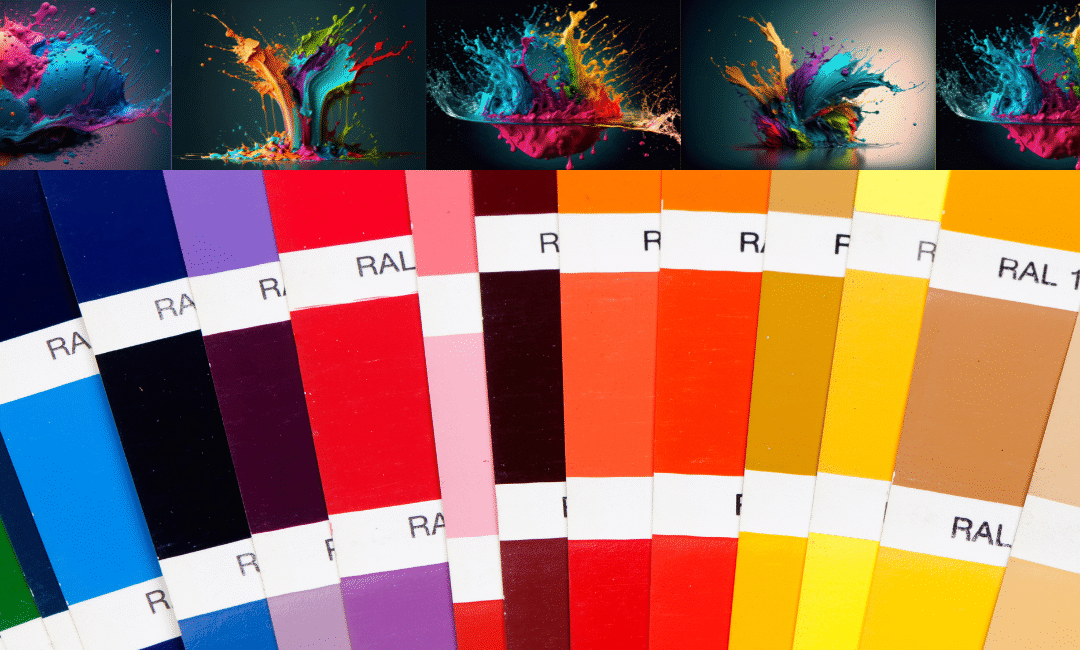
How to Pick a Color with a Color Picker Tool (Beginner-Friendly Guide)
If you want to design a logo, build a website, edit images, or match branding colors, you need the exact color code — not “almost red” or “kind of purple.”
The easiest way to do this is by using a color picker tool.
In this guide, you’ll learn how to pick a color with a color picker tool step-by-step.
This article is simple, SEO-friendly, and gives you everything you need to start using color pickers like a pro.
What Is a Color Picker Tool?
A color picker tool is an online tool that helps you find and copy color values such as:
- HEX (
#ff5733)
- RGB (
255, 87, 51)
- HSL
- CMYK (for printing)
Color pickers let you select a color from:
- an image
- a website
- a design file
- or a color wheel
This makes them perfect for designers, developers, marketers, and creators.
Why Use a Color Picker Tool?
Here are the main reasons people use color pickers:
✔ Match exact colors from images
Useful for brand colors, product photos, and logos.
✔ Capture website colors
Designers can inspect any website color instantly.
✔ Create consistent branding
You can save and reuse the same colors across all designs.
✔ No software required
Most tools work online and are completely free.
✔ Works for beginners and professionals
Very simple UI — anyone can use it.
How to Pick a Color with a Color Picker Tool (Step-by-Step)
This is the easiest method, works with any online color picker:
Step 1: Open Your Color Picker Tool
Use any tool such as:
- Your website’s Online Color Picker
- Adobe Color Picker
- Chrome’s built-in color picker
- Photoshop / Figma pickers
Web-based tools are the simplest and free.
Step 2: Upload an Image or Open the Eyedropper
You can do two things:
Option 1 — Upload an image
Upload a logo, screenshot, or photo.
Option 2 — Use the screen eyedropper
This lets you pick colors from anywhere on your screen.
Step 3: Click on the Color You Want
Use the mouse to click the exact area containing the color.
The tool will instantly show:
- HEX code
- RGB code
- HSL values
- Preview of the selected color
Step 4: Copy the Color Code
Most tools display a “Copy” button next to the HEX value.
Example:
HEX: #3498db → Copy
Now you can use it in:
- Website design
- CSS
- Canva
- Photoshop
- Illustrator
- Mobile apps
- Brand guides
Step 5: Save or Export Your Color Palette
Good color picker tools also allow you to:
- Save colors
- Export your palette
- Name your colors
- Copy multiple codes at once
This helps keep your designs consistent and professional.
Tips for Picking the Perfect Color
✔ Zoom before selecting
Take a zoomed screenshot for more accurate color selection.
✔ Avoid shadows
Shadows or highlights can slightly change color perception.
✔ Use HEX for web design
It’s the most common format online.
✔ Use RGB for digital screens
Best for image editing.
✔ Use CMYK for printing
Gives accurate printed results.
- Website color matching
- Creating logos & branding
- UI/UX design
- Social media posts
- Product packaging
- Photo editing
- YouTube thumbnails
- Flyer/Banner design
- E-commerce product presentation
FAQ — How to Pick a Color With a Color Picker Tool
1. Is a color picker tool free to use?
Yes! Most online tools are free and require no installation.
2. Can I pick a color from a website?
Yes, using the eyedropper feature or a browser extension.
3. Can I extract colors from photos?
Absolutely — upload your photo and click the color.
4. What is the easiest color code to use?
HEX is the most common and beginner-friendly.
5. Why does the color look different on screens?
Different screens have different brightness and color settings.
6. Can I create a full color palette?
Yes — most picker tools allow saving and exporting palettes.
Final Thoughts
Learning how to pick a color with a color picker tool is easy and extremely useful.
Whether you’re designing a website, creating a logo, making social media graphics, or matching brand colors, a color picker gives you precision and consistency.
Start using your Online Color Picker Tool today and make your designs look cleaner, more professional, and perfectly color-matched.